Send music from your computer to your iPhone over Wi-Fi
Drag files from your Mac or PC browser straight into your iPhone library. No cable, no cloud account, nothing to install on the computer.
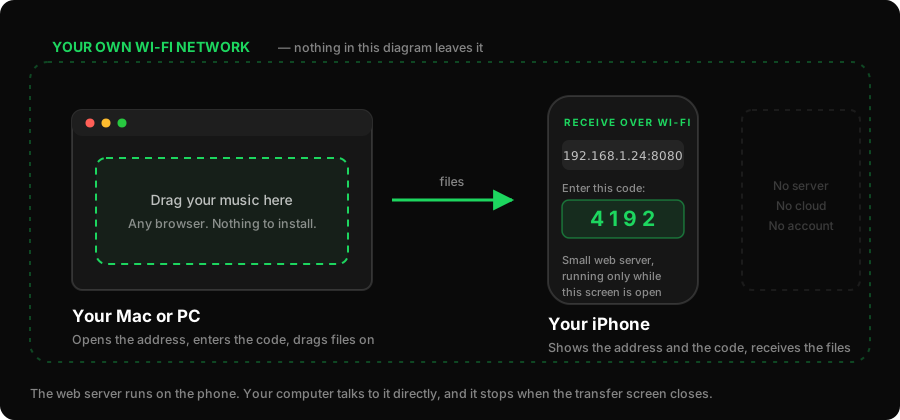
Open Add → Receive over Wi-Fi in Refrain. It shows a web address and a code. Type that address into a browser on your Mac or PC, enter the code, and drag your music files onto the page. They arrive in your library as they upload. Nothing to install on the computer, no cable, no cloud account, and the files never leave your own network.
The short version
- Both devices must be on the same Wi-Fi network.
- The transfer screen has to stay open. Close it and the server stops.
- The code stops anyone else on the network from sending you anything.
- Any browser works — Safari, Chrome, Firefox, Edge. There is nothing to download.
- Drop
.lrcor.srtlyric files in the same batch and they pair with their songs automatically.
Doing it
On the phone. Open your library and tap Add. Choose Receive over Wi-Fi. Refrain
starts a small web server on your local network and shows you two things: an address like
http://192.168.1.24:8080, and a short code.
On the computer. Type that address into a browser. Not into a search box — into the address bar, exactly as shown, including the numbers after the colon. A page appears asking for the code. Enter it.
Drag the files on. Select the MP3s in Finder or Explorer and drag them onto the drop area. Or click it and pick them the normal way. Whole folders work. Songs arrive in batches rather than one at a time, so the count on the phone jumps in steps instead of ticking smoothly — that is normal, and it settles back to waiting on its own when a batch is done.
Close the screen when you're done. The server stops with it. That is not a formality — while the screen is open there is a service listening on your network, and when it is closed there is not. If you try to close it mid-transfer, Refrain asks first, because whatever the computer was part way through sending will fail. Nothing is lost when that happens: the page on your computer still has the files and lets you send them again.
How long does it take?
On decent home Wi-Fi, roughly an album a minute. A typical four-minute MP3 is 5–10 MB, a WAV of the same song is closer to 40 MB, and FLAC sits between them. If you are moving a few hundred WAVs, use a cable — this is not the tool for that, and honestly nothing wireless is.
You do not need to fiddle with Auto-Lock. Refrain keeps the phone awake for as long as the transfer screen is open, precisely because locking the phone would stop the server mid-file. Plug in anyway for a big batch.
The page won't load
Nearly always one of four things, in this order of likelihood.
The phone is on mobile data, not Wi-Fi. Refrain says so on the transfer screen if it cannot start at all. A phone that has quietly fallen back to cellular because the Wi-Fi is weak has no address on your network to give you.
They are on different networks. The classic version of this is a Mac on the 5 GHz band and a phone on the 2.4 GHz band of the same router, which most routers present as one network and some as two. Also common: the phone is on cellular because the Wi-Fi is weak, or the laptop is on a VPN, which routes it somewhere else entirely. Turn the VPN off and check both devices show the same network name.
The network blocks devices from seeing each other. This is called client isolation or AP isolation, and it is on by default on most guest networks, office Wi-Fi, hotel Wi-Fi and university networks. It exists precisely to stop what you are trying to do. There is no fix from inside the app — you need a network that permits it. A phone hotspot works: turn on Personal Hotspot on the phone, join it from the laptop, and transfer over that.
The address was typed into a search box. Browsers will happily search for
192.168.1.24:8080 and show you nothing. It goes in the address bar.
The screen got closed on the phone. Locking the phone, switching apps, or a call coming in can end the session. Reopen it — the address usually stays the same, but the code may not, so read it again.
Is this safe?
The traffic stays on your local network. It does not go to us, because there is no server of ours involved — the web server is running on your phone, and your computer is talking directly to it.
Two things guard it. The code, which someone else on the network would have to guess to send you anything, and the fact that the server only exists while the screen is open. Both are the reason the transfer screen behaves the way it does rather than sitting quietly in the background, which would be more convenient and worse.
Refrain's privacy policy describes this in the same terms.
Sending lyrics at the same time
Put Neon Skyline.mp3 and Neon Skyline.lrc in the same drag and Refrain pairs them on
arrival — same filename, different extension, no matching step afterwards. This is the
easiest moment to do it, because doing it later means finding both files again.
If the MP3 already has lyrics embedded in it, those are used and you do not need a sidecar file at all. How synced lyrics work covers which wins when you have both.
When to use something else
Wi-Fi transfer is the best route when the computer and phone are in the same room and you do not want to hunt for a cable. It is not always the right one.
- Hundreds of files, or big WAVs — use a cable. Plug the phone in, open it in Finder, go to Files, drag the folder onto Refrain.
- The files are already in iCloud Drive or Dropbox — skip this entirely and import from the Files app with Add → Choose a folder.
- You are not near the computer — put the folder in a cloud service and import it on the phone later.
The four import routes compared lays out which is which.
What this doesn't do
It sends files one way, computer to phone. It is not a sync — change something on the computer afterwards and nothing happens on the phone. It will not pull files off the phone either.
And it needs both devices awake and on a cooperative network. On a locked-down corporate Wi-Fi, no amount of retrying will help; use a cable or a hotspot.
Related
Last updated 7 August 2026